Features
What you set up, how your team works with it and what you should know. All views are original screenshots with sample boards.
BOARDS & TEAMS
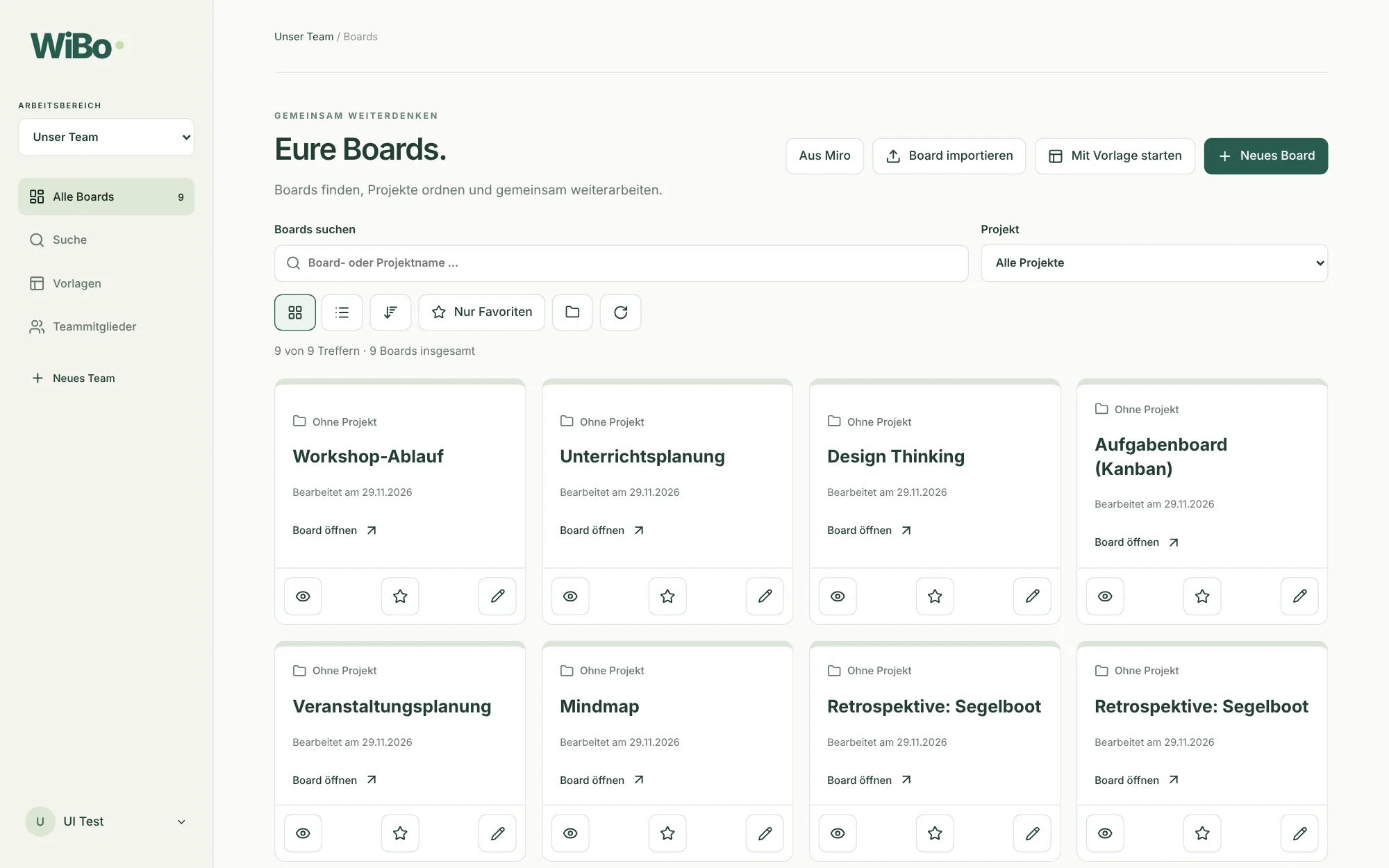
Create teams, invite members and organise boards in projects. For individual people you can allow or block editing, commenting, files and workshop control per board.
Cross-board search finds titles, object texts, comments and file names of all boards you may open. A result opens the board right at the matching object.
Example: An association creates one project per working group. The board marks the boards of the current retreat as favourites and finds older results via search.
Good to know: Favourites are only visible to your own account. Projects organise boards but do not change team rights.
TEMPLATES
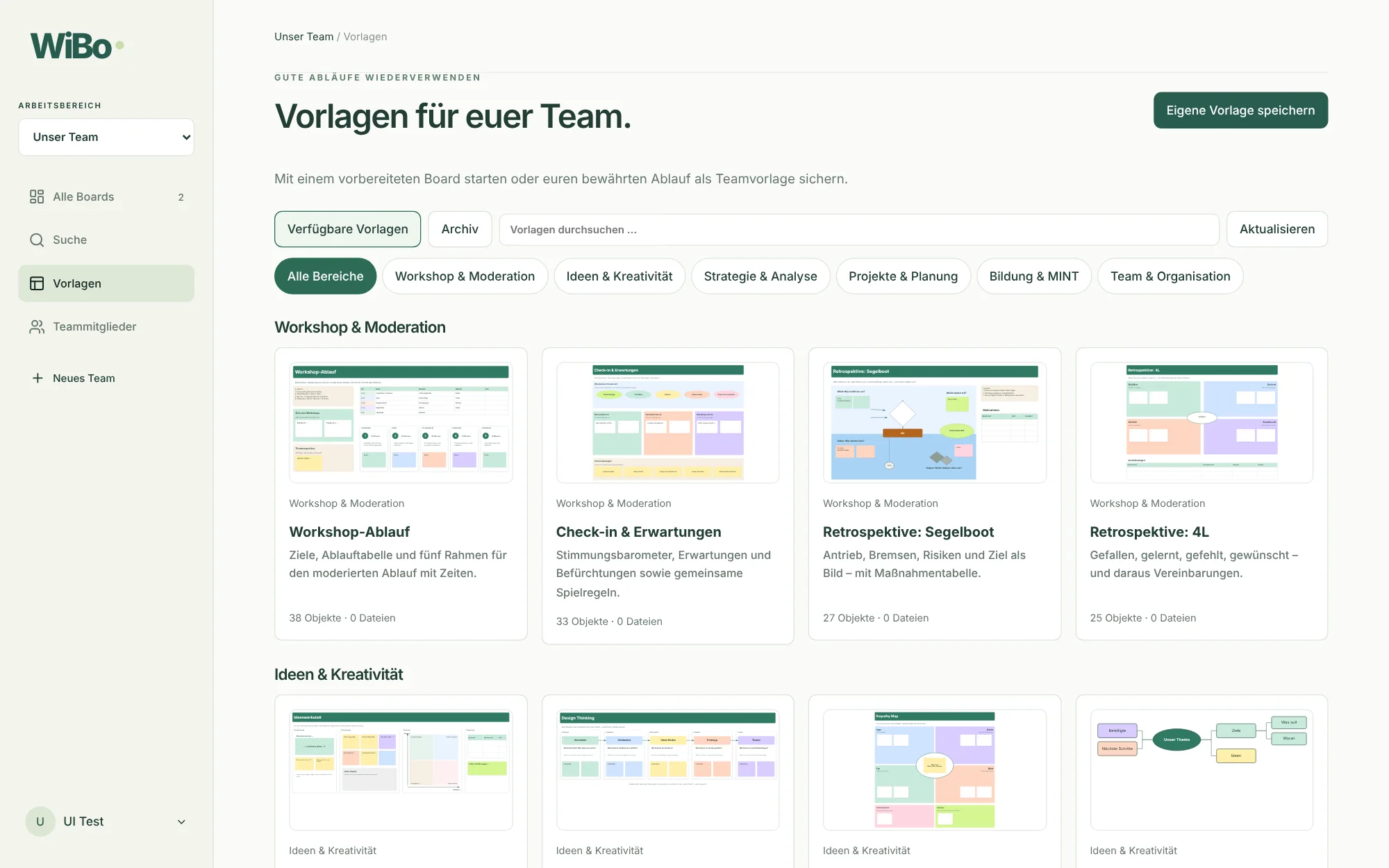
Pick a template, check it in the large preview and create a new board from it. Save proven boards as team templates with a name and description.
Team templates can be updated from a board; the last 20 versions remain with preview and restore. Boards remember which template version they came from.
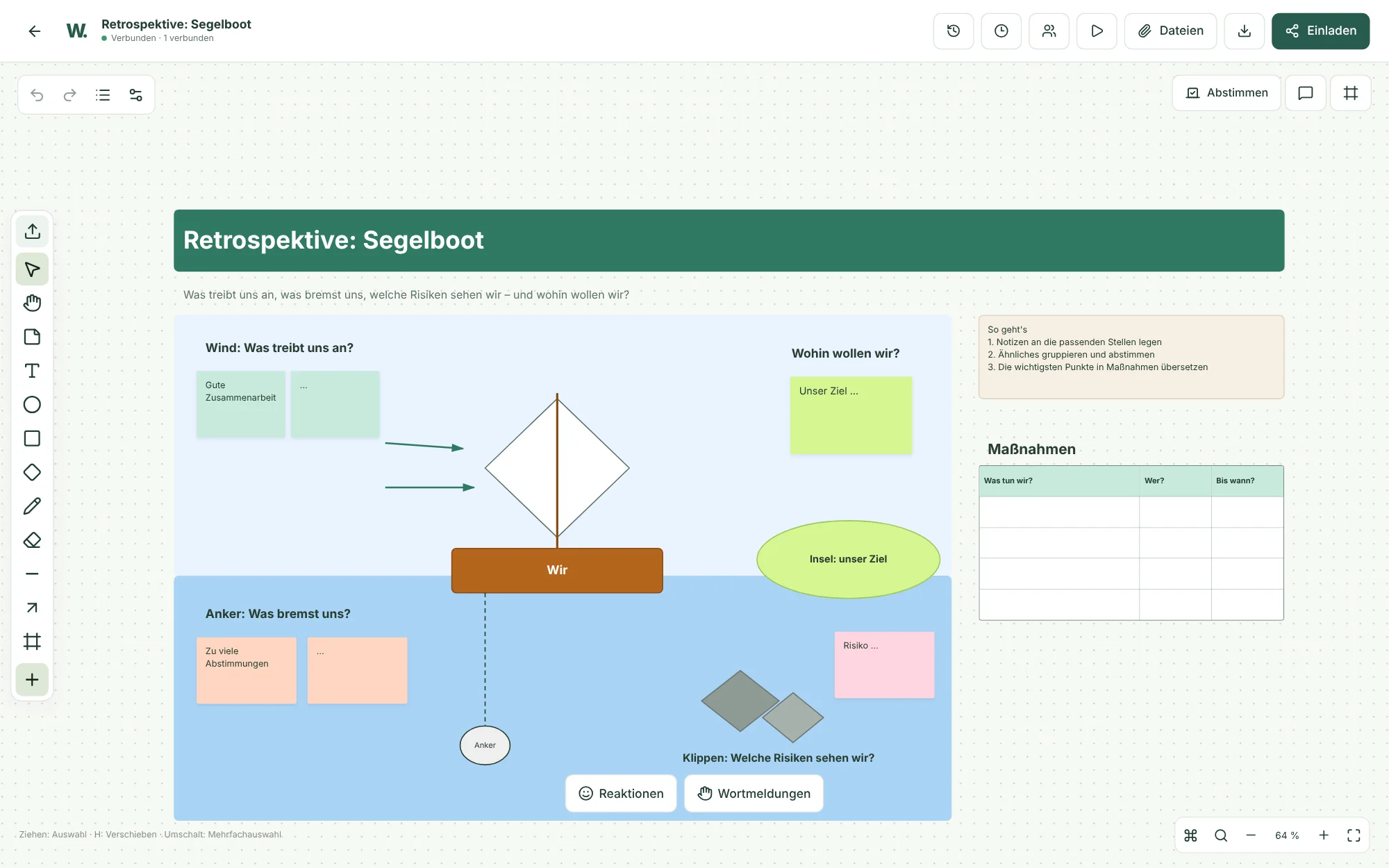
Example: After every project a team uses the “Sailboat” retrospective and has turned it into its own template with fixed action fields.
Good to know: Every new board gets its own objects and image files. Changes to the board do not change the template.
MIND MAPS
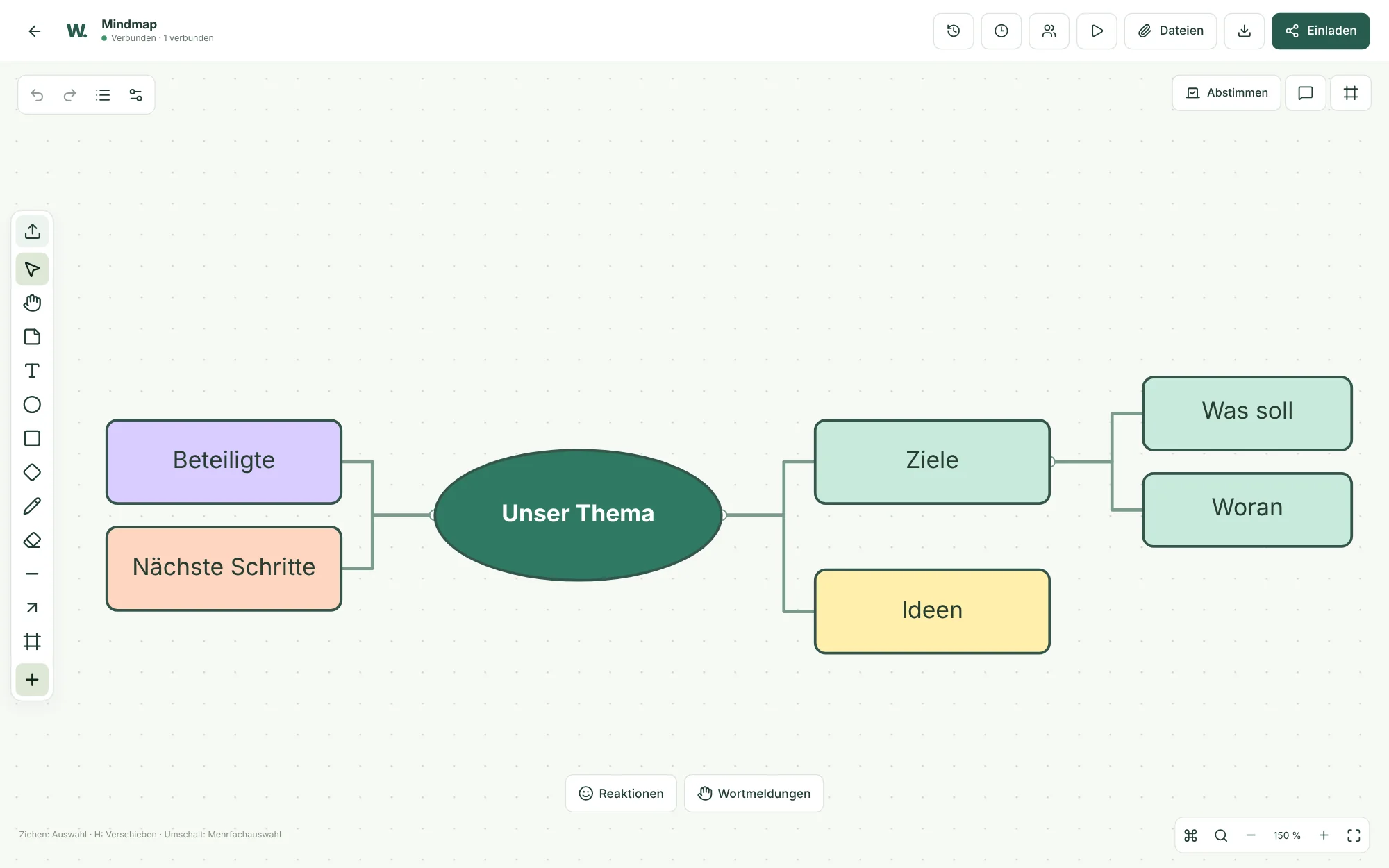
Under “+ → Mind map” you create a centre and work outwards with keyboard or mouse. Branches can be re-attached at any time.
Several people add branches at the same time; every change appears live for everyone. Shared undo and redo stay traceable.
Example: At the start of a project the team collects stakeholders, goals, ideas and next steps in a mind map.
Good to know: Mind maps are regular board objects and can be combined with notes, frames and connectors.
KANBAN
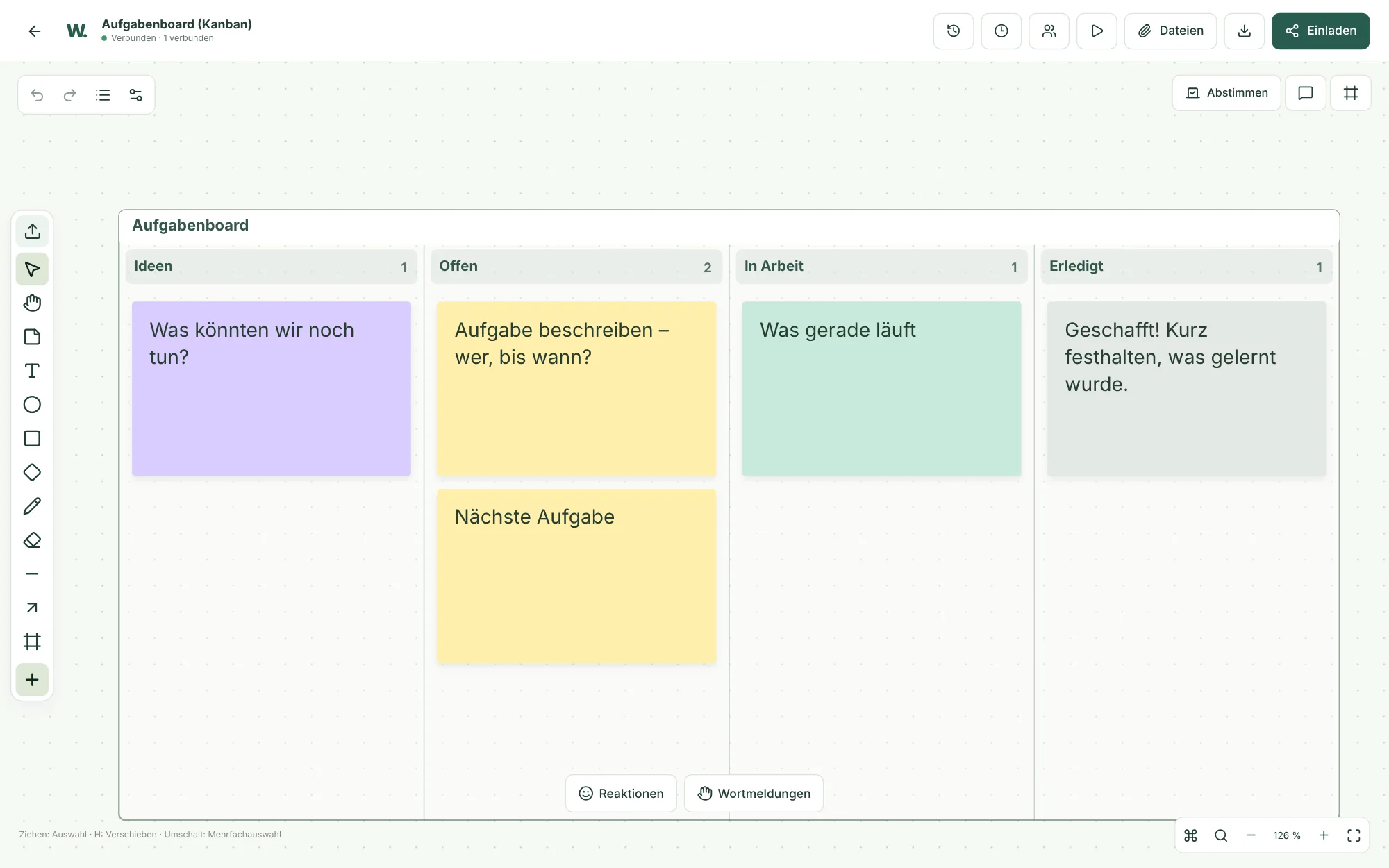
Start with the kanban template or turn an existing frame into a kanban. Adjust column names and order in the frame menu.
When someone drags a note into another column it lines up neatly there; everyone else sees the change immediately.
Example: After a workshop the actions are moved straight into a task board with “Open”, “In progress” and “Done” on the same board.
Good to know: WiBo is not a full project management tool; due dates and owners remain text on the note.
TIMELINES & TABLES
Under “+ → Timeline” you choose start, unit and length; under “+ → Table” you create a table and add rows and columns.
Tables can be exported as image or PDF and appear as a Markdown table in the text export.
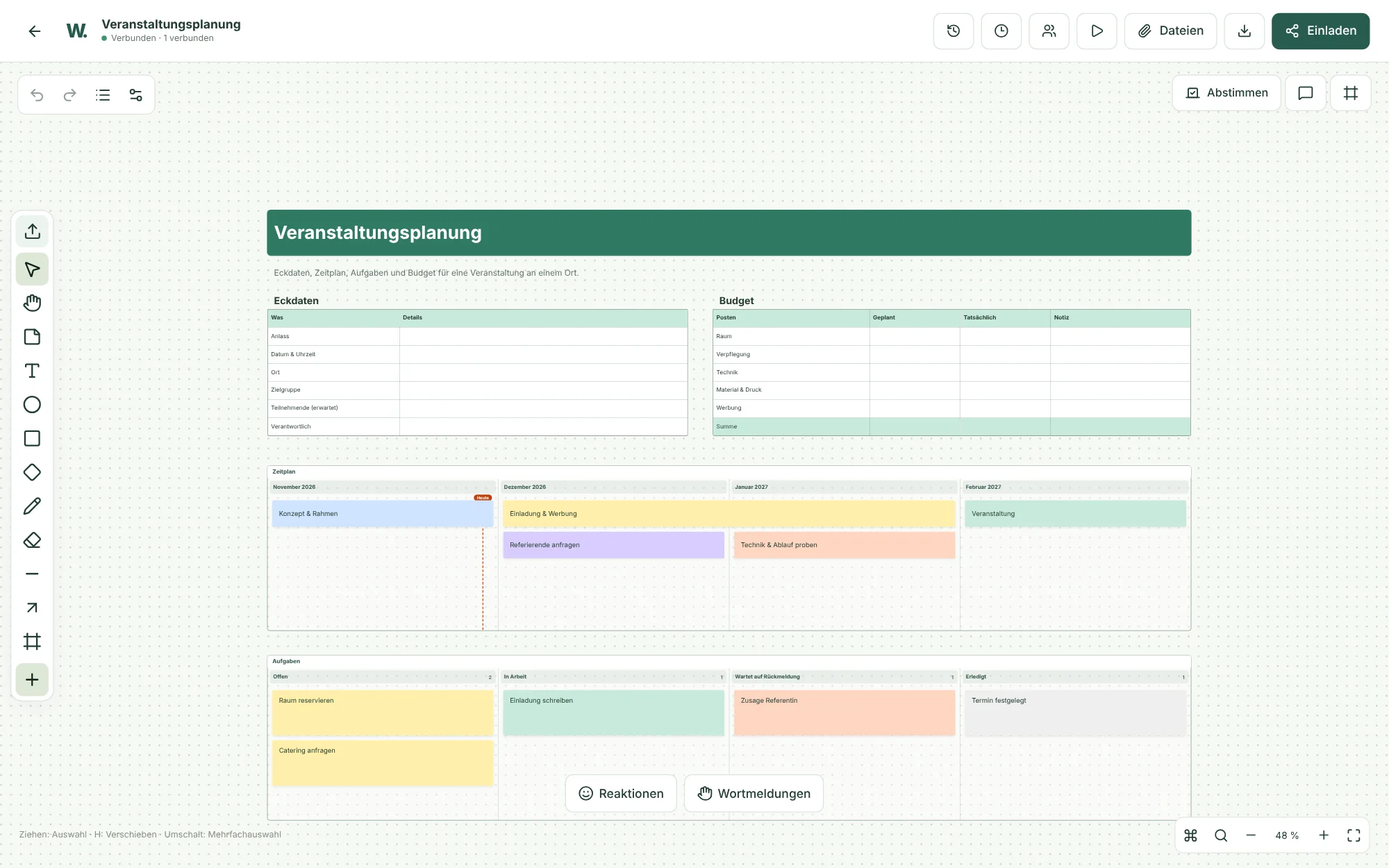
Example: The “Event planning” template combines key facts, budget, a four-month schedule and a task board on one board.
Good to know: Timelines sort notes by their date; they are not a calendar integration.
WORKSHOP MODE
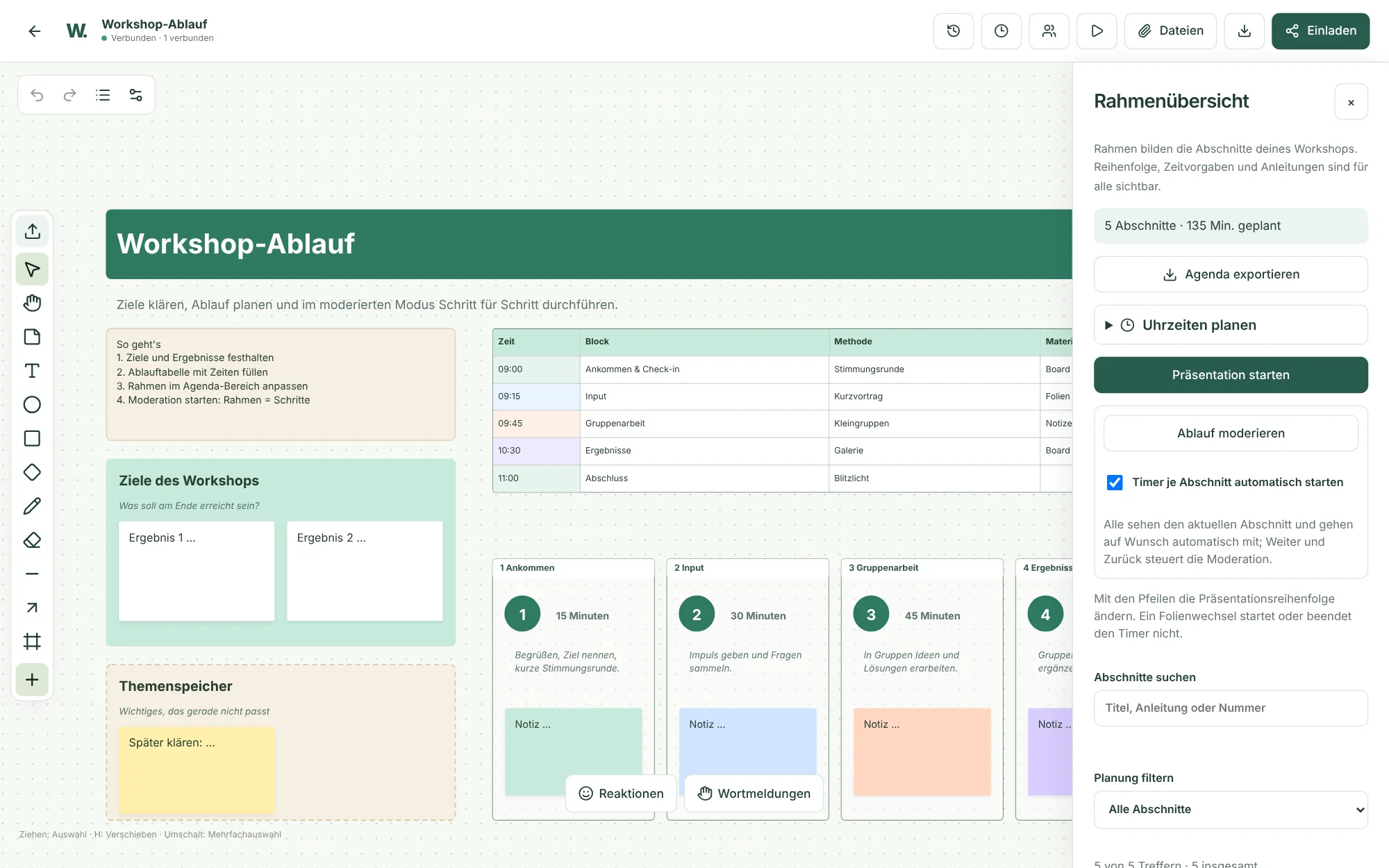
In the frame overview you order sections, add instructions and durations and enter a start time. Missing durations explicitly leave later times open.
“Moderate the flow” shows everyone a progress bar; the facilitator moves forward or back, sees deviations from the plan and starts the timer per section.
Example: A morning with five sections between 9:00 and 12:30: the facilitator sees that group work takes ten minutes longer and re-plans the end.
Good to know: Changing slides does not start a timer. A section duration is only used after it is explicitly taken over.
PRESENT & FOLLOW
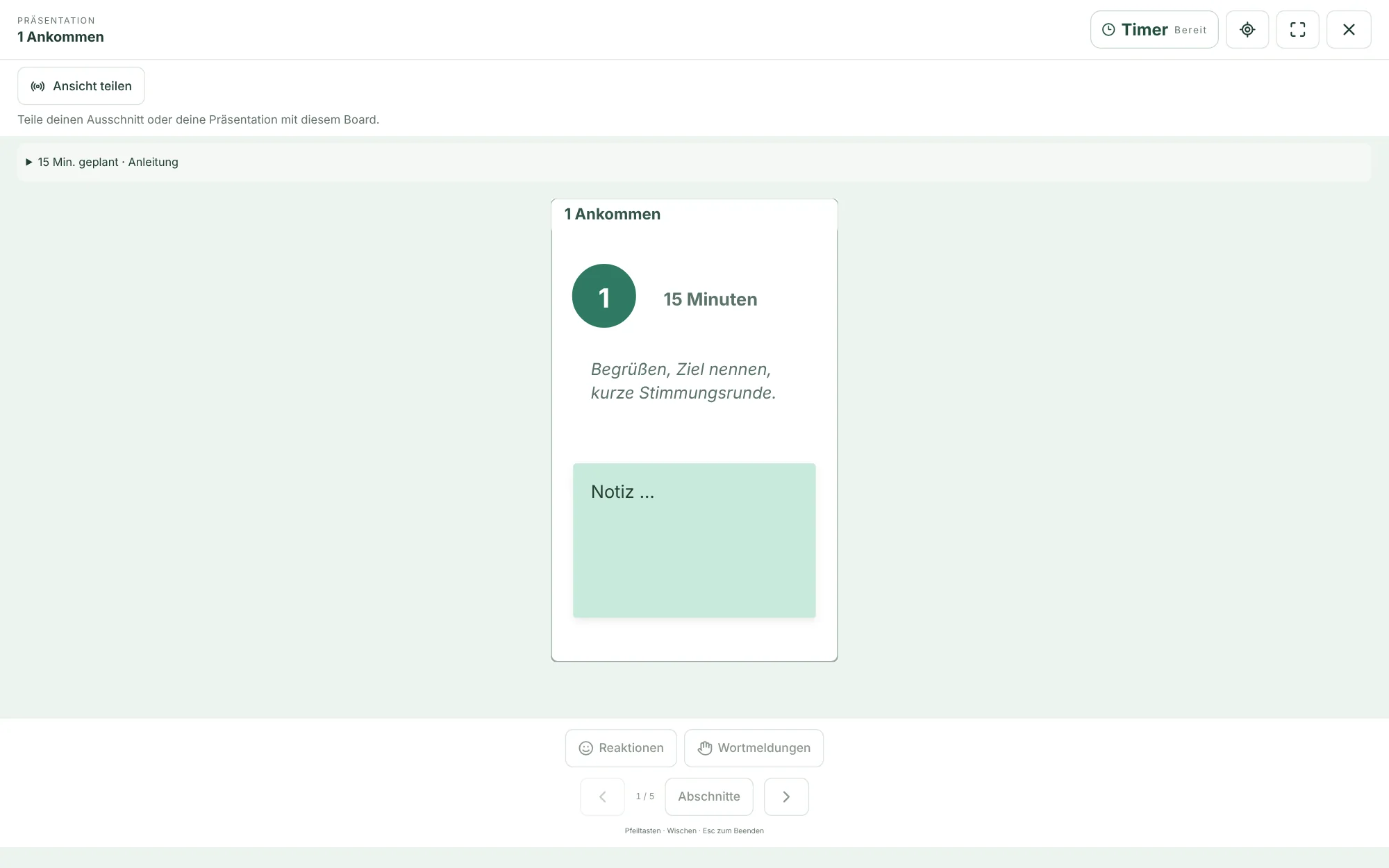
“Present frames” starts the presentation, also in full screen. Sections can be searched and opened directly.
Anyone following a view can stay on the current frame while the presentation continues. Content, instructions and timer stay live.
Example: At a retreat the facilitator presents the flow; two participants stay on a slide to read a table and then catch up with one click.
Good to know: Pausing only affects your own view; no frozen copy is created.
PARTICIPATION
Start a dot vote on selected objects and set the number of dots. Guest links allow viewing, commenting or editing, with a freely chosen duration.
Hands can be raised in board, presentation and follow view; people with workshop rights close raised hands. Reactions can be bundled into counters.
Example: In the retrospective everyone puts three dots on the most important brakes; the results go into the minutes as CSV.
Good to know: Voting results are exported without individual votes. Reactions are not stored on the board.
Three of the 22 templates as finished boards, ready for further thinking.
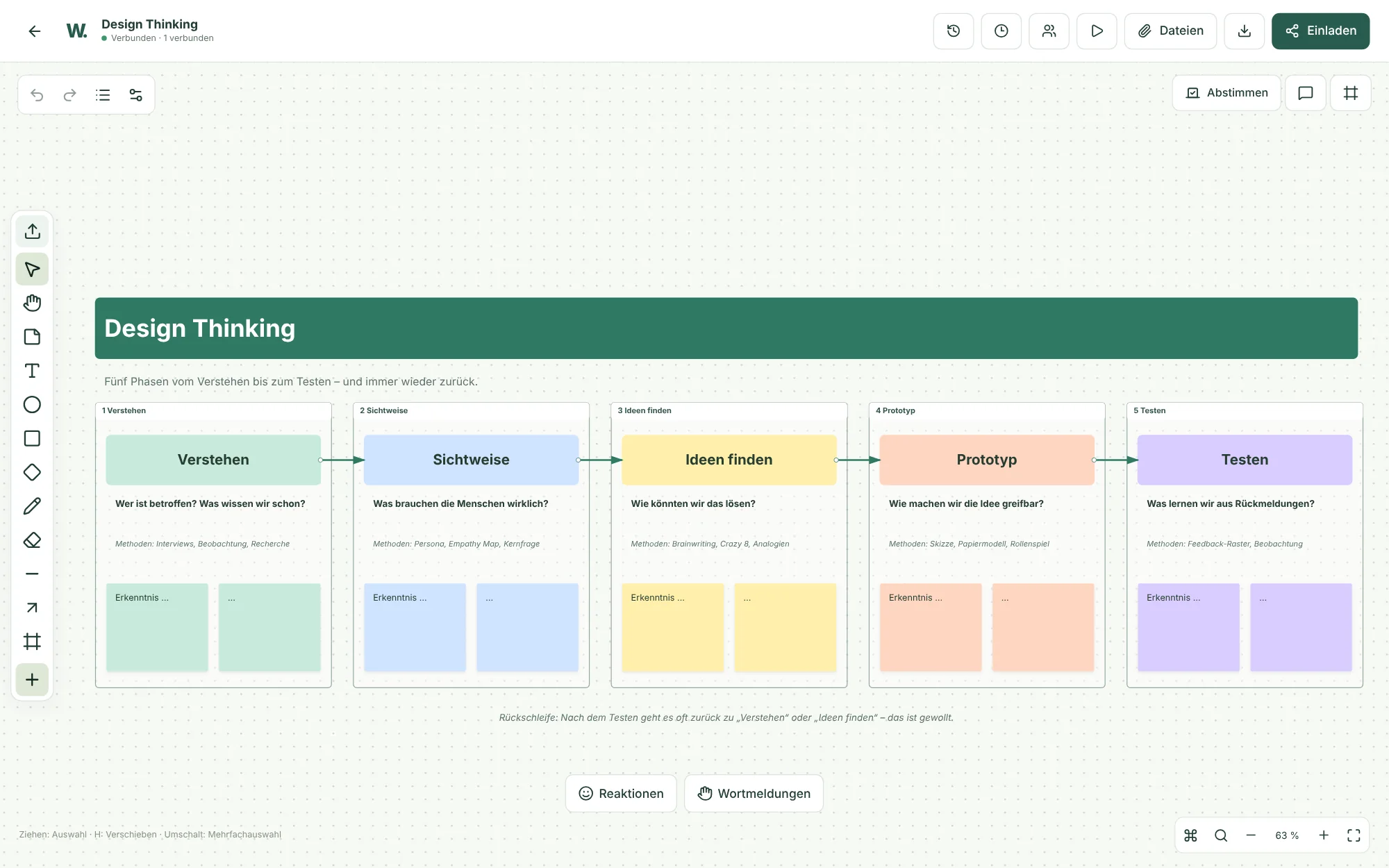
Five phases with guiding questions, methods and room for insights.
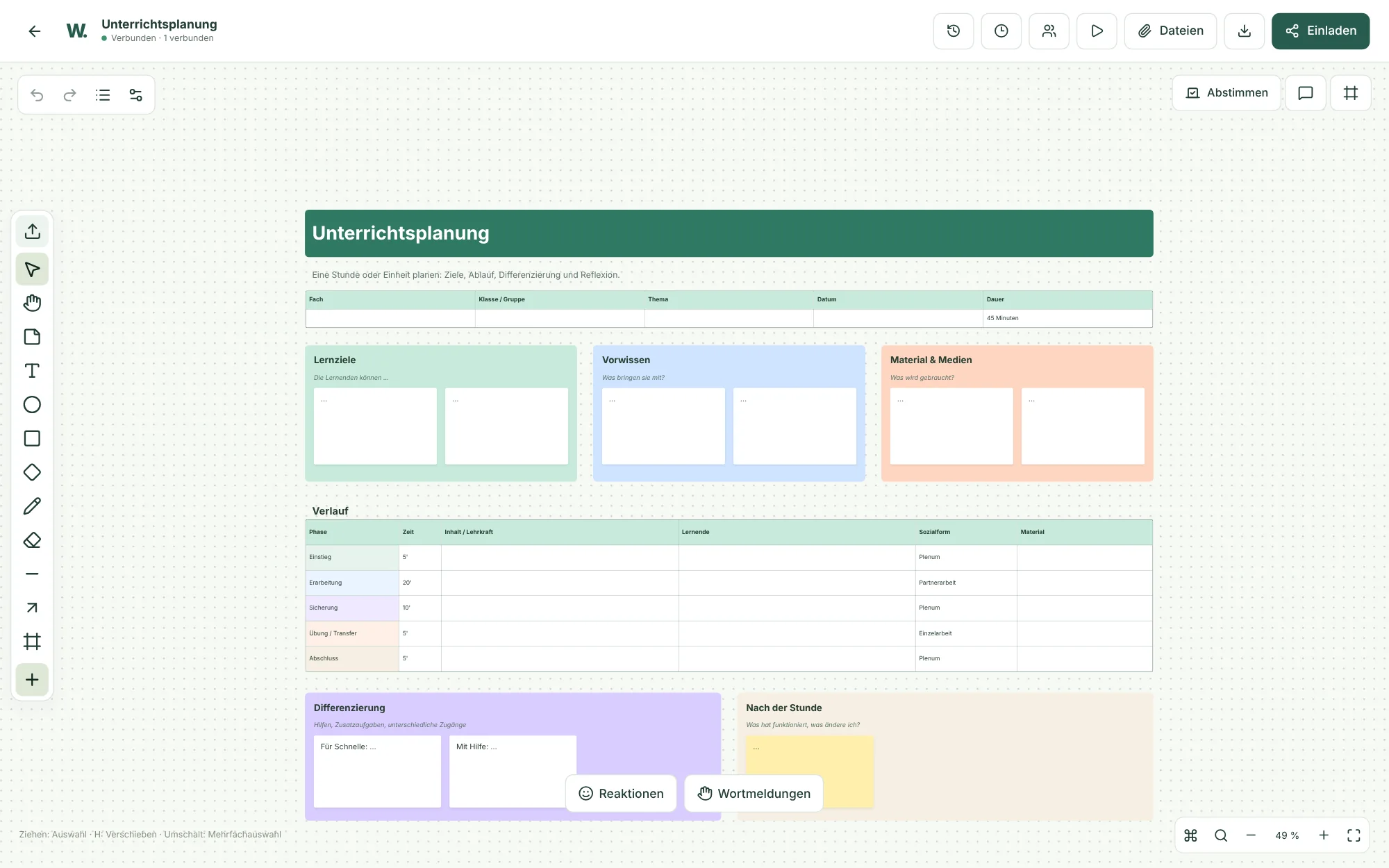
Learning goals, lesson plan, differentiation and reflection on one board.
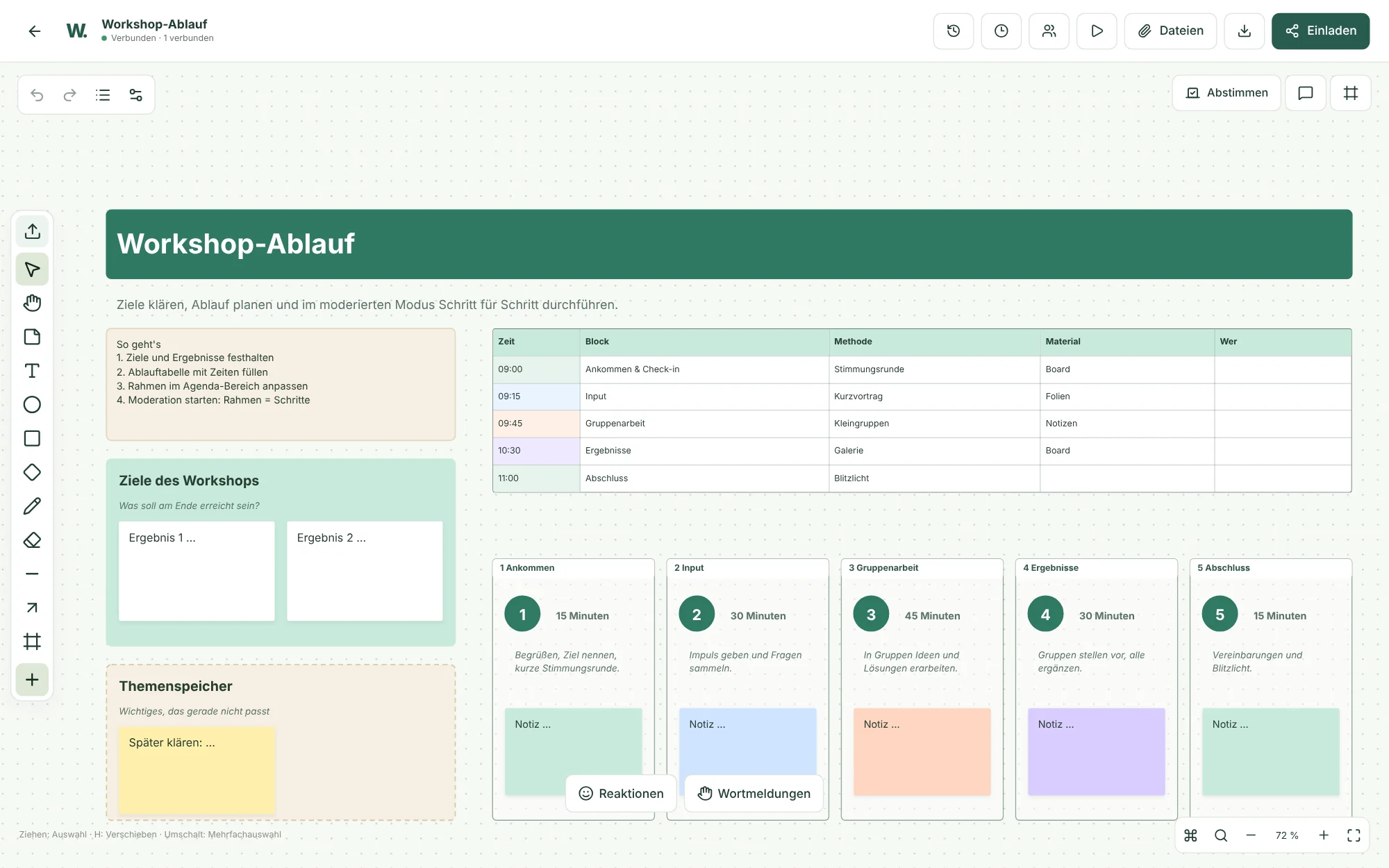
Goals, schedule table and five frames for the moderated flow with times.